> ## Documentation Index
> Fetch the complete documentation index at: https://docs.axoma.ai/llms.txt
> Use this file to discover all available pages before exploring further.
# Personal Assistant
## Overview
The Personal Assistant in Axoma is an AI-powered chat interface available to all user roles [Users](http://localhost:3000/introduction/introduction#user), [Admins](http://localhost:3000/introduction/introduction#admin),
and [Superadmins](http://localhost:3000/introduction/introduction#super-admin) It offers intelligent conversation capabilities through LLM Chat, DocuChat, or Agentic workflows,
providing dynamic access to knowledge across uploaded documents and connected systems.
## Launching the Chatbot
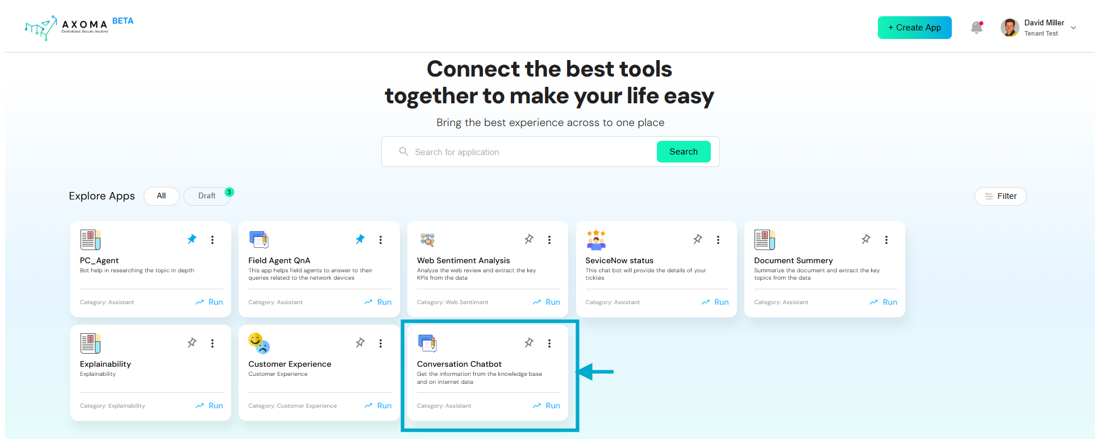
Users can simply click “Run” from the application dashboard to launch the chatbot interface and begin a new interactive session.
This launches the app in real time and initiates a conversation window tailored for contextual engagement.
 Before the Personal Assistant can be used, the app must be configured properly by Admins and Superadmins:
* 1. Create and Draft an App: Admins or Superadmins [Create a New App](http://localhost:3000/app%20settings/introdution#create-a-new-app) from the [Dashboard](http://localhost:3000/dashboard).The app initially appears in the Draft section.
* 2. Configure App Settings: Navigate to [App Settings](http://localhost:3000/app%20settings/introdution#app-settings), where various foundational elements are managed:
* [Tags](http://localhost:3000/app%20settings/security#tags): Define categorization labels for documents and data.
* [Groups](http://localhost:3000/app%20settings/security#groups): Create user groups.
* [Access Rights](http://localhost:3000/app%20settings/security#access-rights): Create rights and associate them with specific files.
* Assign Groups to Access Rights: This determines who can access what files.
📌 Refer to the uploaded architecture image: Users → Groups → Access Rights → Files
* 3. [Model Selection](http://localhost:3000/app%20settings/model%20selection) & [API Key Verification](http://localhost:3000/app%20settings/model%20selection#api-key-verification): Verify the API key created by a Superadmin in Global Settings > LLM Management.
Once verified, the key will list:
* Number of linked models
* Fallback model (if configured)
* 4. Model Configuration: In App Settings > Language and Embedding Model:
* One Embedding Model can be selected.
* Multiple Language Models can be selected.
* 5. [Knowledge Base](http://localhost:3000/app%20settings/knowledge%20base): Admins/Superadmins can upload documents up to 15 MB. Each file can have:
* Tags
* Access Rights
* [Parser Preferences](http://localhost:3000/app%20settings/knowledge%20base#parser-preferences):
* Quick: Fast for text-only files (customizable chunk size and overlap).
* Smart: Balanced for documents with minor visuals.
* Ultra: Precision-focused for image-heavy or complex documents.
* 6. [Other Settings](http://localhost:3000/app%20settings/other%20settings): Located at App Settings > Other Settings, key components include:
* System Prompt: Define reusable system-level prompts to guide the AI’s behavior (max 250 characters).
* User Experience: Toggle key options such as:
* File attachments
* Prompt library
* Chat history
* Multi-agent support
* Workflow & Agent Selection: Two modes are supported:
a. Workflow-Based Assistant
Choose between:
* LLM Chat
* DocuChat
b. Agentic Assistant: Select one or more AI agents created via Agent Management for real-time automation and execution.
Once all the app settings are completed. User is ready to [Run](http://localhost:3000/app%20settings/introdution#publish-app) the App.
## End-User Experience
Once the app is launched from the draft, all users (User, Admin, Superadmin) gain access to the Personal Assistant
from the dashboard.
Chat Preferences: Users can toggle between:
* DocuChat
* LLM Chat
* Agentic Workflow Chat (if configured)
Before the Personal Assistant can be used, the app must be configured properly by Admins and Superadmins:
* 1. Create and Draft an App: Admins or Superadmins [Create a New App](http://localhost:3000/app%20settings/introdution#create-a-new-app) from the [Dashboard](http://localhost:3000/dashboard).The app initially appears in the Draft section.
* 2. Configure App Settings: Navigate to [App Settings](http://localhost:3000/app%20settings/introdution#app-settings), where various foundational elements are managed:
* [Tags](http://localhost:3000/app%20settings/security#tags): Define categorization labels for documents and data.
* [Groups](http://localhost:3000/app%20settings/security#groups): Create user groups.
* [Access Rights](http://localhost:3000/app%20settings/security#access-rights): Create rights and associate them with specific files.
* Assign Groups to Access Rights: This determines who can access what files.
📌 Refer to the uploaded architecture image: Users → Groups → Access Rights → Files
* 3. [Model Selection](http://localhost:3000/app%20settings/model%20selection) & [API Key Verification](http://localhost:3000/app%20settings/model%20selection#api-key-verification): Verify the API key created by a Superadmin in Global Settings > LLM Management.
Once verified, the key will list:
* Number of linked models
* Fallback model (if configured)
* 4. Model Configuration: In App Settings > Language and Embedding Model:
* One Embedding Model can be selected.
* Multiple Language Models can be selected.
* 5. [Knowledge Base](http://localhost:3000/app%20settings/knowledge%20base): Admins/Superadmins can upload documents up to 15 MB. Each file can have:
* Tags
* Access Rights
* [Parser Preferences](http://localhost:3000/app%20settings/knowledge%20base#parser-preferences):
* Quick: Fast for text-only files (customizable chunk size and overlap).
* Smart: Balanced for documents with minor visuals.
* Ultra: Precision-focused for image-heavy or complex documents.
* 6. [Other Settings](http://localhost:3000/app%20settings/other%20settings): Located at App Settings > Other Settings, key components include:
* System Prompt: Define reusable system-level prompts to guide the AI’s behavior (max 250 characters).
* User Experience: Toggle key options such as:
* File attachments
* Prompt library
* Chat history
* Multi-agent support
* Workflow & Agent Selection: Two modes are supported:
a. Workflow-Based Assistant
Choose between:
* LLM Chat
* DocuChat
b. Agentic Assistant: Select one or more AI agents created via Agent Management for real-time automation and execution.
Once all the app settings are completed. User is ready to [Run](http://localhost:3000/app%20settings/introdution#publish-app) the App.
## End-User Experience
Once the app is launched from the draft, all users (User, Admin, Superadmin) gain access to the Personal Assistant
from the dashboard.
Chat Preferences: Users can toggle between:
* DocuChat
* LLM Chat
* Agentic Workflow Chat (if configured)
 ### DocuChat
Users can attach up to 8 documents using the attach 🖇️ icon.
* Upon attaching click on '+' icon to add the specific document to the chat,so users can chat directly with the document contents.
* If a document was uploaded through the Knowledge Base, apply parsing settings.
* These documents are shared based on Access Rights.
### DocuChat
Users can attach up to 8 documents using the attach 🖇️ icon.
* Upon attaching click on '+' icon to add the specific document to the chat,so users can chat directly with the document contents.
* If a document was uploaded through the Knowledge Base, apply parsing settings.
* These documents are shared based on Access Rights.
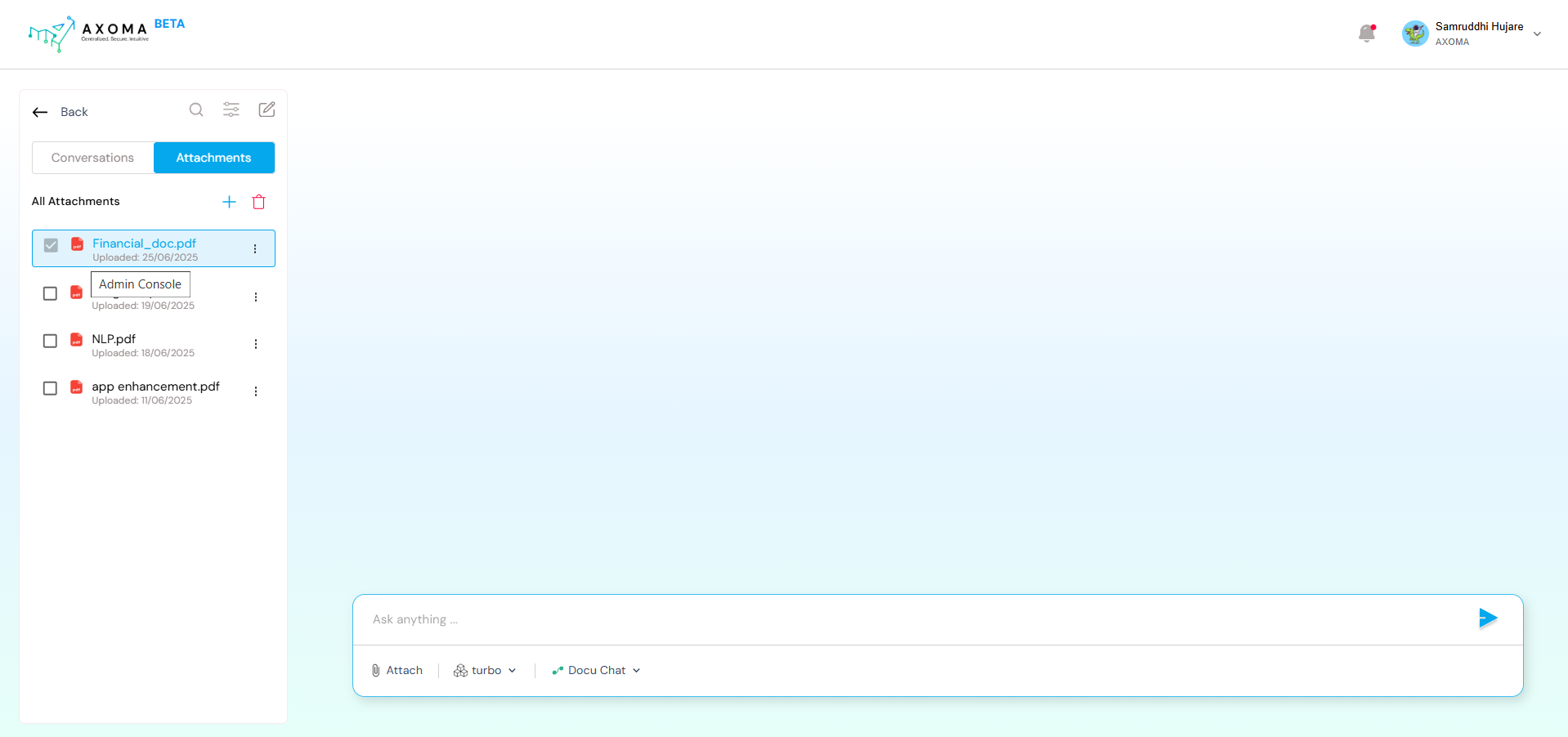 Answer Summary & Source Info
When using DocuChat, answers are:
* Extracted intelligently based on file contents and parser preference.
* Displayed along with:
* Paragraph reference
* File path
* Document title
Answer Summary & Source Info
When using DocuChat, answers are:
* Extracted intelligently based on file contents and parser preference.
* Displayed along with:
* Paragraph reference
* File path
* Document title
 ### LLM Chat
LLM Chat enables users to interact directly with a Large Language Model (LLM) that was configured during the App Setup phase. This chat is designed for general-purpose AI conversations, similar to ChatGPT or other public LLM interfaces.
* No document or external context is required.
* Ideal for open-ended queries, brainstorming, summarization, casual Q\&A, etc.
* Powered by models like OpenAI GPT, Anthropic Claude, Google Gemini, etc., depending on the app's LLM gateway configuration.
* User input is sent directly to the selected model with no additional processing or tools involved.
### LLM Chat
LLM Chat enables users to interact directly with a Large Language Model (LLM) that was configured during the App Setup phase. This chat is designed for general-purpose AI conversations, similar to ChatGPT or other public LLM interfaces.
* No document or external context is required.
* Ideal for open-ended queries, brainstorming, summarization, casual Q\&A, etc.
* Powered by models like OpenAI GPT, Anthropic Claude, Google Gemini, etc., depending on the app's LLM gateway configuration.
* User input is sent directly to the selected model with no additional processing or tools involved.
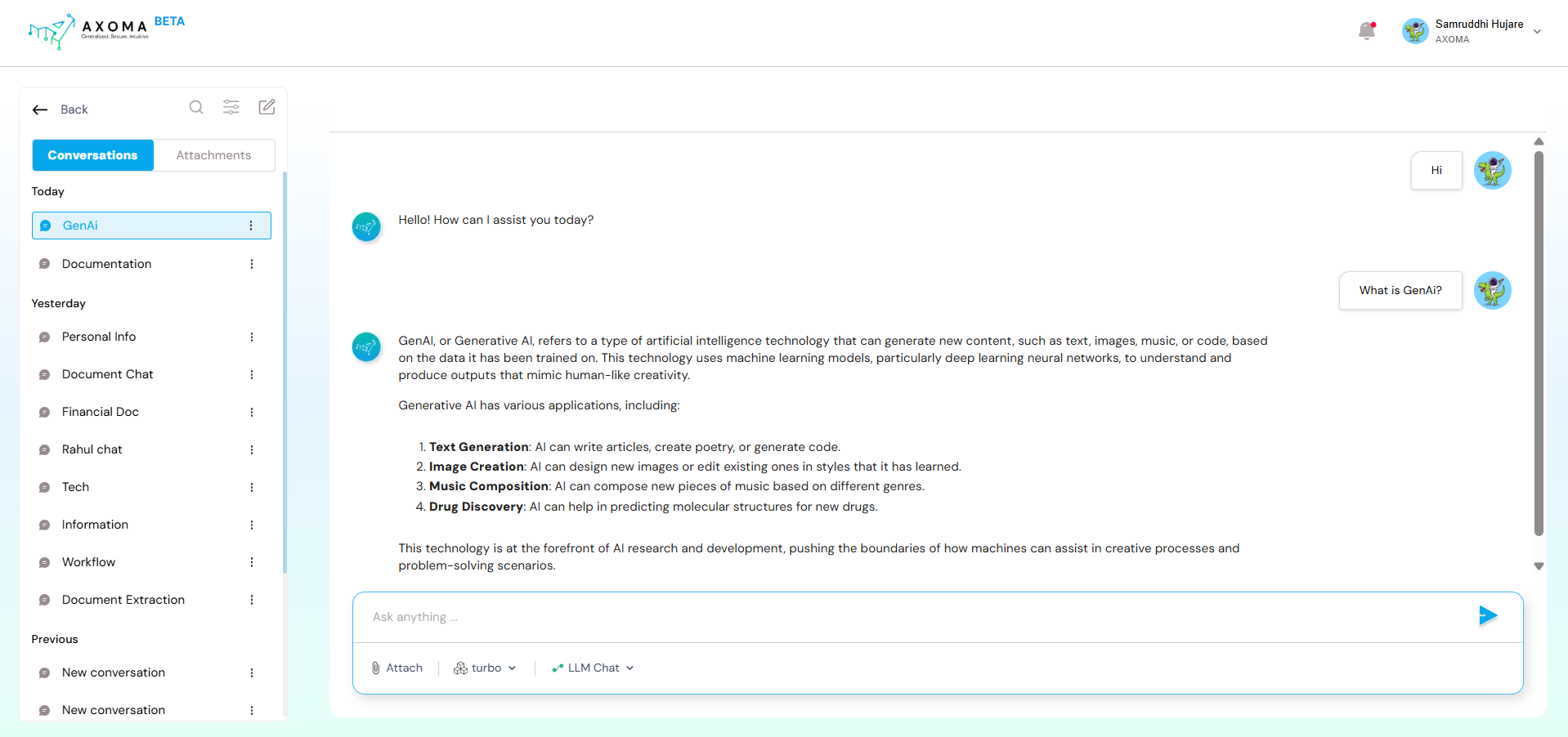 Use Case Examples:
* “Explain quantum computing in simple terms.”
* “Write a professional email requesting a meeting.”
* “Summarize the benefits of remote work.”
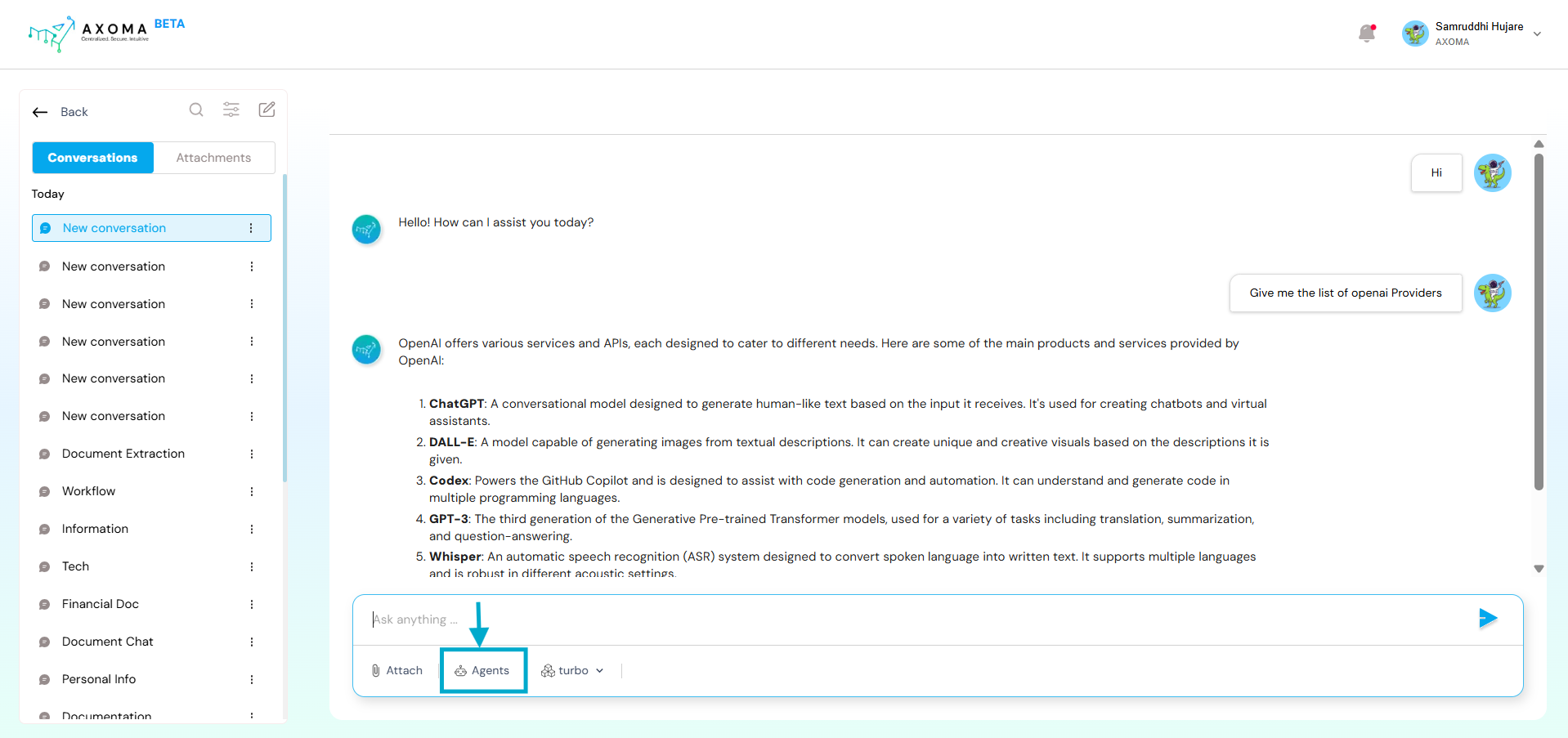
### Agentic Chat
Agentic Chat is enabled when the Agentic Workflow is selected during App Setup. Here, users interact with a custom-built AI Agent created and configured in the Agent Management module.
Agents are enhanced versions of LLMs that can have access to Tools
Dashboard > App > App Settings > Other Settings > Workflow & Agent Management
Use Case Examples:
* “Explain quantum computing in simple terms.”
* “Write a professional email requesting a meeting.”
* “Summarize the benefits of remote work.”
### Agentic Chat
Agentic Chat is enabled when the Agentic Workflow is selected during App Setup. Here, users interact with a custom-built AI Agent created and configured in the Agent Management module.
Agents are enhanced versions of LLMs that can have access to Tools
Dashboard > App > App Settings > Other Settings > Workflow & Agent Management
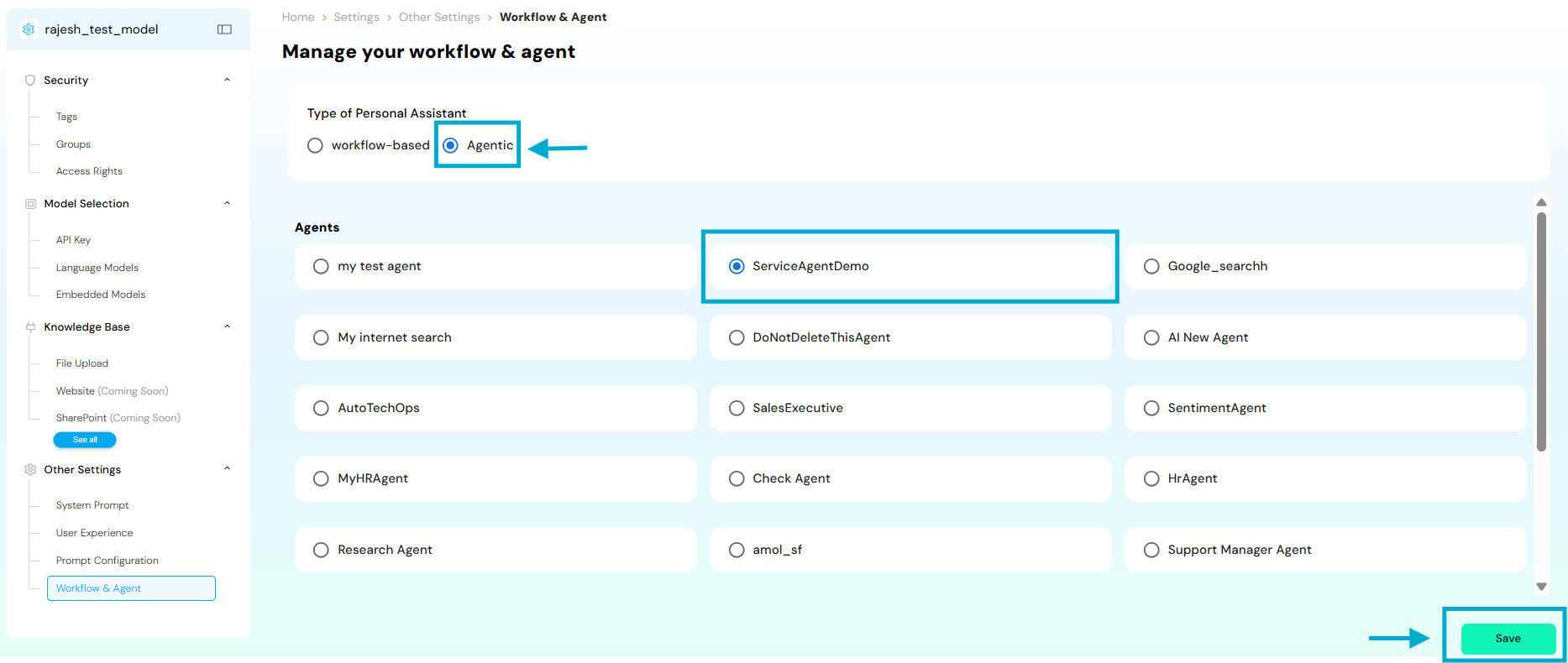 Key Characteristics:
* Requires users to select a specific Agent from a list of available agents.
* Agents are designed for task-specific or role-specific interactions (e.g., HR assistant, IT helpdesk, Research bot).
* Can perform dynamic actions, like querying documents, invoking tools, or responding with multi-step reasoning.
* Custom settings, tools, and context are attached to each Agent, making them more intelligent and interactive.
Use Case Examples:
* “Search company policy documents for remote work guidelines.”
* “Create a Jira ticket and assign it to John from the IT team.”
* “Summarize this uploaded PDF and extract key action points.”
This enables automated interactions, such as API calls or system operations.
Key Characteristics:
* Requires users to select a specific Agent from a list of available agents.
* Agents are designed for task-specific or role-specific interactions (e.g., HR assistant, IT helpdesk, Research bot).
* Can perform dynamic actions, like querying documents, invoking tools, or responding with multi-step reasoning.
* Custom settings, tools, and context are attached to each Agent, making them more intelligent and interactive.
Use Case Examples:
* “Search company policy documents for remote work guidelines.”
* “Create a Jira ticket and assign it to John from the IT team.”
* “Summarize this uploaded PDF and extract key action points.”
This enables automated interactions, such as API calls or system operations.
 ### Multi-Agent
Axoma’s Personal Assistant can be extended beyond single-agent conversations by integrating Multi-Agent Orchestration and Workflow automation, enabling users to execute complex, collaborative, and multi-step operations directly from the chat interface. These advanced capabilities must be explicitly enabled during App configuration.
Enabling Multi-Agent Access
To use Multi-Agent systems and Workflows inside the Personal Assistant, Admins or Superadmins must enable the required preferences:
Dashboard > App > App Settings > System Configuration > Agent and Automation Access
From this section:
* Enable Agent Access to allow agent-based interactions
* Enable Automation / Workflow Access to allow workflow execution from chat
Once enabled, these options become available to end users inside the Personal Assistant interface.
Multi-Agent Integration in Personal Assistant
When Multi-Agent Orchestration is enabled, the Personal Assistant can leverage multiple collaborating AI agents instead of a single agent or LLM.
A Multi-Agent System is composed of multiple distinct agents working together to achieve a shared objective. This improves reasoning quality, modularity, and maintainability compared to monolithic agents.
How It Works in Personal Assistant
* Users interact with the Personal Assistant as usual.
* Behind the scenes, the selected Multi-Agent system handles the request.
* The system coordinates multiple agents based on its configured orchestration model.
Axoma supports two orchestration models:
Sequential Multi-Agent
* Agents execute tasks in a fixed, linear order.
* Output from one agent becomes input to the next.
* Best suited for pipeline-style processes.
Example Flow:
Transcriber Agent → Analyzer Agent → Report Generator Agent
Typical Chat Use Cases:
*“Analyze this document and generate a summary report.”*
*“Process this input and email the final output.”*
Coordinator-Based Multi-Agent
* A dedicated Coordinator Agent dynamically delegates tasks to specialized sub-agents.
* Suitable for complex, conversational, or parallel workflows.
Typical Chat Use Cases:
*“Search policy documents, summarize findings, and draft a response.”*
*“Decide whether this request needs HR, IT, or Finance involvement.”*
The Personal Assistant remains the single interaction layer, while the coordinator manages internal agent collaboration.
### Workflow
The Workflow Module enables users to trigger predefined AI-driven automation workflows directly from the Personal Assistant chat.
Workflows act as the orchestration layer that connects:
* LLMs
* AI agents
* External tools (Jira, Salesforce, Gmail, ServiceNow, etc.)
* Conditional logic and multi-step execution
How It Works in Personal Assistant
* Users issue natural-language commands in chat.
* The Personal Assistant identifies and triggers the appropriate workflow.
* The workflow executes visually defined steps and returns results conversationally.
Typical Chat Use Cases:
*“Trigger the employee onboarding workflow.”*
*“Run the ticket classification workflow on this email.”*
*“Execute the document processing workflow for this uploaded file.”*
This allows users to automate complex business processes without leaving the chat interface.
Combined Experience
When Multi-Agent Orchestration and Workflow Automation are both enabled:
* The Personal Assistant becomes a unified control layer for:
* Conversational AI
* Multi-agent reasoning
* Enterprise automation
Users can seamlessly switch between:
* LLM Chat
* Agentic Chat
* Multi-Agent execution
* Workflow-driven automation
All interactions remain conversational, while execution happens intelligently in the background.
### Multi-Agent
Axoma’s Personal Assistant can be extended beyond single-agent conversations by integrating Multi-Agent Orchestration and Workflow automation, enabling users to execute complex, collaborative, and multi-step operations directly from the chat interface. These advanced capabilities must be explicitly enabled during App configuration.
Enabling Multi-Agent Access
To use Multi-Agent systems and Workflows inside the Personal Assistant, Admins or Superadmins must enable the required preferences:
Dashboard > App > App Settings > System Configuration > Agent and Automation Access
From this section:
* Enable Agent Access to allow agent-based interactions
* Enable Automation / Workflow Access to allow workflow execution from chat
Once enabled, these options become available to end users inside the Personal Assistant interface.
Multi-Agent Integration in Personal Assistant
When Multi-Agent Orchestration is enabled, the Personal Assistant can leverage multiple collaborating AI agents instead of a single agent or LLM.
A Multi-Agent System is composed of multiple distinct agents working together to achieve a shared objective. This improves reasoning quality, modularity, and maintainability compared to monolithic agents.
How It Works in Personal Assistant
* Users interact with the Personal Assistant as usual.
* Behind the scenes, the selected Multi-Agent system handles the request.
* The system coordinates multiple agents based on its configured orchestration model.
Axoma supports two orchestration models:
Sequential Multi-Agent
* Agents execute tasks in a fixed, linear order.
* Output from one agent becomes input to the next.
* Best suited for pipeline-style processes.
Example Flow:
Transcriber Agent → Analyzer Agent → Report Generator Agent
Typical Chat Use Cases:
*“Analyze this document and generate a summary report.”*
*“Process this input and email the final output.”*
Coordinator-Based Multi-Agent
* A dedicated Coordinator Agent dynamically delegates tasks to specialized sub-agents.
* Suitable for complex, conversational, or parallel workflows.
Typical Chat Use Cases:
*“Search policy documents, summarize findings, and draft a response.”*
*“Decide whether this request needs HR, IT, or Finance involvement.”*
The Personal Assistant remains the single interaction layer, while the coordinator manages internal agent collaboration.
### Workflow
The Workflow Module enables users to trigger predefined AI-driven automation workflows directly from the Personal Assistant chat.
Workflows act as the orchestration layer that connects:
* LLMs
* AI agents
* External tools (Jira, Salesforce, Gmail, ServiceNow, etc.)
* Conditional logic and multi-step execution
How It Works in Personal Assistant
* Users issue natural-language commands in chat.
* The Personal Assistant identifies and triggers the appropriate workflow.
* The workflow executes visually defined steps and returns results conversationally.
Typical Chat Use Cases:
*“Trigger the employee onboarding workflow.”*
*“Run the ticket classification workflow on this email.”*
*“Execute the document processing workflow for this uploaded file.”*
This allows users to automate complex business processes without leaving the chat interface.
Combined Experience
When Multi-Agent Orchestration and Workflow Automation are both enabled:
* The Personal Assistant becomes a unified control layer for:
* Conversational AI
* Multi-agent reasoning
* Enterprise automation
Users can seamlessly switch between:
* LLM Chat
* Agentic Chat
* Multi-Agent execution
* Workflow-driven automation
All interactions remain conversational, while execution happens intelligently in the background.