> ## Documentation Index
> Fetch the complete documentation index at: https://docs.axoma.ai/llms.txt
> Use this file to discover all available pages before exploring further.
# Workflow
The Workflow Module in the Axoma Platform enables users to visually design, configure, and manage end-to-end AI-driven automation processes. It acts as the orchestration layer, bringing together AI agents, LLMs, and external tool integrations (e.g., Jira, Salesforce, Gmail, ServiceNow) within a unified, drag-and-drop environment.
Workflows can automate multi-step tasks, route information intelligently, and implement dynamic logic to solve complex business scenarios.
 ## Workflow Management Dashboard
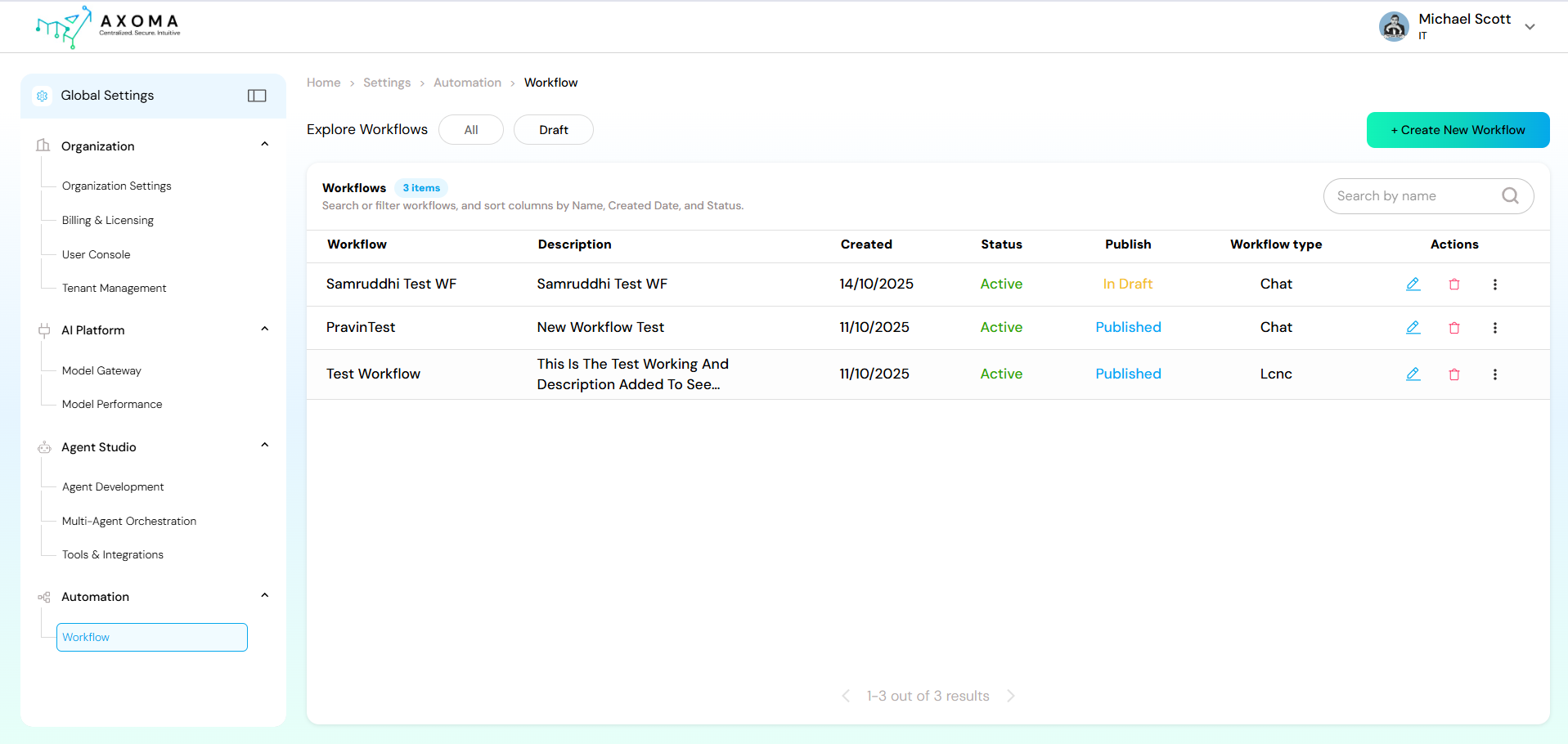
The Workflow Dashboard serves as the central hub for managing all existing workflows. Users can create, edit, publish, or monitor automation processes from one interface.
| **Feature** | **Description** |
| ----------------------- | --------------------------------------------------------------------------------------------------------------------------------------------------------------------------------------------------- |
| **Workflow List** | Displays all available workflows with key details including *Name, Description, Created Date, Status (Active/Inactive)*, *Publish State (Draft/Published)*, and *Workflow Type* (Chat, LCNC, etc.). |
| **Create New Workflow** | Opens a new workflow design canvas for building automation from scratch. |
| **Search & Filter** | Allows searching workflows by name or filtering by status, publish state, or creation date. |
| **Actions** | Quick access options such as **Edit**, **Delete**, **View Runs**, **Schedule Flow**, **Open in Playground**, and **Publish/Unpublish**. |
## Create a Workflow
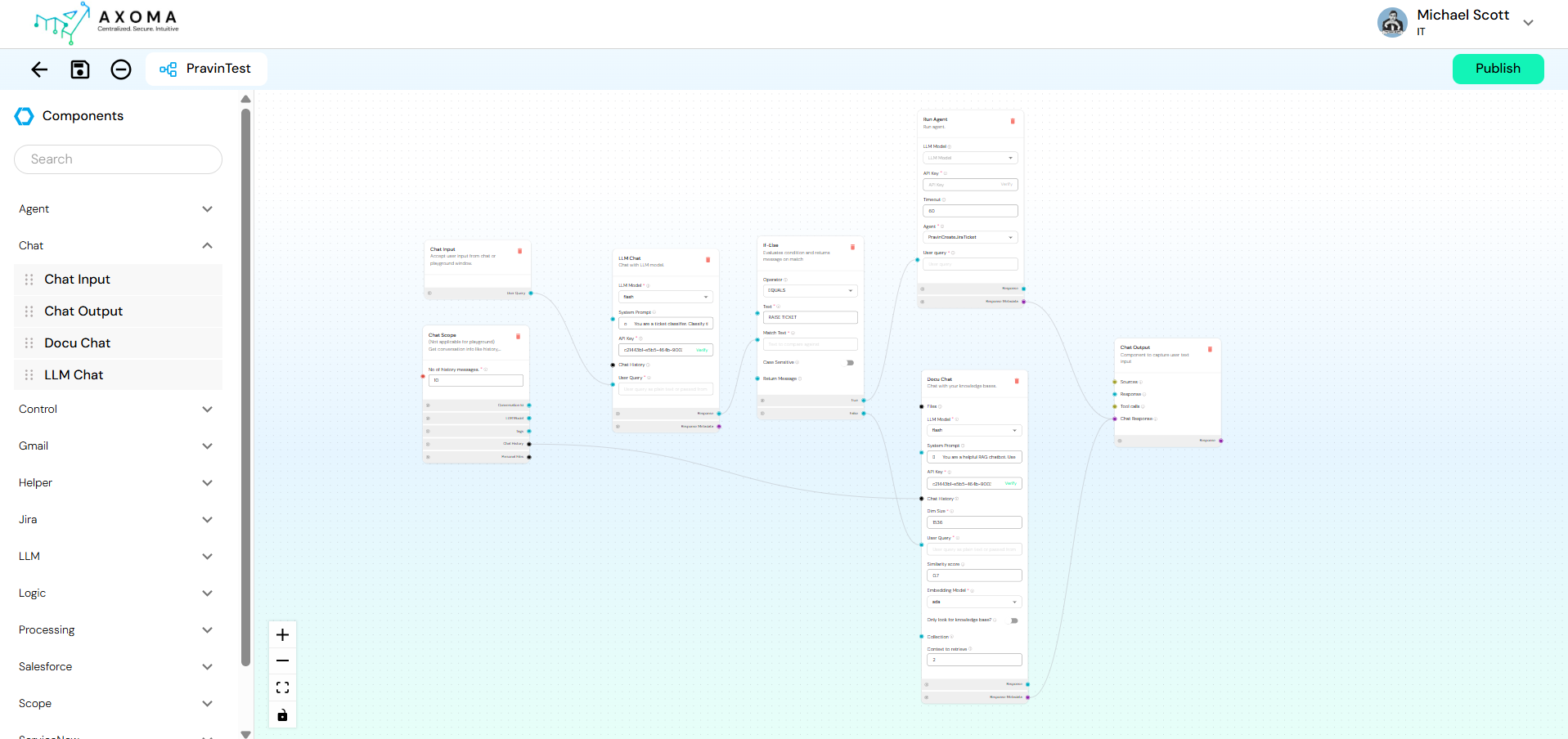
Click Create New Workflow to enter the Workflow Playground a visual design environment where automation logic is built using pre-defined components.
#### 1. Open the Playground
* Click Create New Workflow or select an existing workflow to modify.
* The visual canvas opens, displaying a Components Panel on the left and a Design Canvas in the center.
#### 2. Drag Components
* From the left-hand Components Panel, drag and drop desired components (e.g., Chat Input, If-Else, DocuChat, Run Agent, etc.) onto the canvas.
#### 3. Connect Components
* Use arrows to connect output fields of one component to input fields of another.
* The flow defines the execution order and data mapping between steps.
#### 4. Configure Each Component
* Click on a component to open its configuration panel.
* Fill required fields such as API Key, Model Selection, Query, or Condition Parameters.
#### 5. Test & Publish
* Use the Preview/Run feature to test your workflow.
* Click Publish when ready to make it active.
## Workflow Management Dashboard
The Workflow Dashboard serves as the central hub for managing all existing workflows. Users can create, edit, publish, or monitor automation processes from one interface.
| **Feature** | **Description** |
| ----------------------- | --------------------------------------------------------------------------------------------------------------------------------------------------------------------------------------------------- |
| **Workflow List** | Displays all available workflows with key details including *Name, Description, Created Date, Status (Active/Inactive)*, *Publish State (Draft/Published)*, and *Workflow Type* (Chat, LCNC, etc.). |
| **Create New Workflow** | Opens a new workflow design canvas for building automation from scratch. |
| **Search & Filter** | Allows searching workflows by name or filtering by status, publish state, or creation date. |
| **Actions** | Quick access options such as **Edit**, **Delete**, **View Runs**, **Schedule Flow**, **Open in Playground**, and **Publish/Unpublish**. |
## Create a Workflow
Click Create New Workflow to enter the Workflow Playground a visual design environment where automation logic is built using pre-defined components.
#### 1. Open the Playground
* Click Create New Workflow or select an existing workflow to modify.
* The visual canvas opens, displaying a Components Panel on the left and a Design Canvas in the center.
#### 2. Drag Components
* From the left-hand Components Panel, drag and drop desired components (e.g., Chat Input, If-Else, DocuChat, Run Agent, etc.) onto the canvas.
#### 3. Connect Components
* Use arrows to connect output fields of one component to input fields of another.
* The flow defines the execution order and data mapping between steps.
#### 4. Configure Each Component
* Click on a component to open its configuration panel.
* Fill required fields such as API Key, Model Selection, Query, or Condition Parameters.
#### 5. Test & Publish
* Use the Preview/Run feature to test your workflow.
* Click Publish when ready to make it active.
 ## Workflow Components
Each component in the Components Panel plays a specific role. They are grouped into functional categories for easy navigation.
### Component Categories Overview
| **Category** | **Description** |
| -------------- | ------------------------------------------------------------------------------------- |
| **Agent** | Manages AI agent execution inside workflows. |
| **Chat** | Manages conversational flow between user input, LLM response, and chat output. |
| **Control** | Adds logical flow control like loops or sequence continuations. |
| **Gmail** | Handles Gmail-related operations for reading, replying, or sending emails. |
| **Helper** | Provides small but essential utilities like generating IDs or fetching timestamps. |
| **Jira** | Automates Jira ticket management and issue tracking. |
| **LLM** | Handles tasks related to language models, such as creating embeddings or model calls. |
| **Logic** | Implements conditional flow using If-Else branches. |
| **Processing** | Data manipulation and transformation utilities. |
| **Salesforce** | Integrates Salesforce cases for CRM automation. |
| **Scope** | Defines data scope such as chat or app-level context. |
| **ServiceNow** | Automates incident management and ticket updates. |
| **Variables** | Stores and reuses static or dynamic input values. |
### Component Details
| **Component** | **Description** | **Key Configurations** |
| ------------- | ------------------------------------------------------ | ----------------------------------------------------------------------------------------------- |
| **Run Agent** | Executes a predefined agent created in *Agent Studio*. | Select **Agent Name**, **LLM Model**, provide **API Key**, and configure **Timeout** if needed. |
| **Component** | **Purpose** | **Description** |
| --------------- | -------------------- | ------------------------------------------------------------------------------------------------------------------------------------------------------------------ |
| **Chat Input** | Entry point | Captures user queries or inputs to initiate workflow execution. |
| **Chat Output** | Exit point | Displays or returns the final AI response to the user. |
| **DocuChat** | Knowledge-based chat | Integrates document-based chat powered by a connected knowledge base. Includes settings for *Similarity Score*, *Embedding Model*, and *Knowledge Base Selection*. |
| **LLM Chat** | Model interaction | Routes input through a selected LLM model. You can define *System Prompt*, *User Query*, *API Key*, and *Model Type*. |
| **Component** | **Description** |
| -------------- | ----------------------------------------------------------- |
| **App Scope** | Defines global data scope for app-level variables. |
| **Chat Scope** | Manages conversational history and session-level variables. |
| **Component** | **Purpose** |
| ------------------- | -------------------------------------------------------------------- |
| **Loop** | Executes a defined set of actions repeatedly based on a condition. |
| **Next (Continue)** | Defines sequential flow to continue execution after a previous step. |
| **Component** | **Description** |
| -------------------- | -------------------------------------------------------------------- |
| **Current Datetime** | Fetches current date and time dynamically. |
| **ID Generator** | Generates unique identifiers for records, messages, or transactions. |
| **Component** | **Description** |
| -------------------- | ------------------------------------------------------------------------------------ |
| **Create Embedding** | Generates embeddings for text data to use in retrieval or semantic search workflows. |
| **Component** | **Description** |
| ------------- | ----------------------------------------------------------------------------------------------------------------------------------------- |
| **If-Else** | Adds conditional branching logic. For example: If the *LLM output = "Raise Ticket"*, then route to Jira Create Issue; else continue chat. |
| **Component** | **Description** |
| --------------------- | --------------------------------------------------------------------------- |
| **Merge Data** | Combines data from multiple sources. |
| **Combine Text** | Merges multiple text fields into one. |
| **Data to DataFrame** | Converts structured data into a dataframe format for advanced manipulation. |
| **RegEx Extractor** | Extracts specific patterns using regular expressions. |
| **Component** | **Purpose** |
| ------------------- | ------------------------------------------------------------- |
| **Draft Gmail** | Creates a draft email within a connected Gmail account. |
| **Gmail Extractor** | Extracts email metadata such as sender, subject, or date. |
| **Read Gmail** | Reads the contents of emails from the inbox based on filters. |
| **Reply Gmail** | Sends a reply to a specific email thread. |
| **Send Gmail** | Sends new emails to specified recipients. |
| **Component** | **Description** |
| ------------------------- | ---------------------------------------------------------- |
| **Create Jira Issue** | Creates a new issue/ticket in Jira. |
| **Jira Ticket Extractor** | Extracts relevant details from Jira tickets. |
| **Jira Read Issues** | Fetches issue data from Jira based on filters. |
| **Jira Update Issues** | Updates existing Jira tickets (status, description, etc.). |
| **Component** | **Description** |
| ---------------------- | ----------------------------------- |
| **Create Case** | Creates a new case in Salesforce. |
| **Get Multiple Cases** | Retrieves a list of cases. |
| **Get Single Case** | Fetches details of a specific case. |
| **Component** | **Description** |
| -------------- | ----------------------------------------------------------- |
| **App Scope** | Defines global data scope for app-level variables. |
| **Chat Scope** | Manages conversational history and session-level variables. |
| **Component** | **Description** |
| ---------------- | ------------------------------------------------------------------------ |
| **Static Input** | Defines fixed input variables (constants) for reuse across the workflow. |
## Workflow Execution Flow
A workflow executes step by step, following the defined connections:
* **Input**: Captured via Chat Input or API trigger.
* **Processing**: Handled by LLMs, Agents, or external integrations.
* **Logic Handling**: Decisions made by If-Else or Loop components.
* **Output**: Final message displayed via Chat Output or logged in connected systems.
## Best Practices
* Keep workflows modular reuse existing templates for common automations.
* Validate each node before publishing.
* Use naming conventions (e.g., “WF\_SupportTicket”) for clarity.
* Regularly review published workflows for optimization.
## Workflow Components
Each component in the Components Panel plays a specific role. They are grouped into functional categories for easy navigation.
### Component Categories Overview
| **Category** | **Description** |
| -------------- | ------------------------------------------------------------------------------------- |
| **Agent** | Manages AI agent execution inside workflows. |
| **Chat** | Manages conversational flow between user input, LLM response, and chat output. |
| **Control** | Adds logical flow control like loops or sequence continuations. |
| **Gmail** | Handles Gmail-related operations for reading, replying, or sending emails. |
| **Helper** | Provides small but essential utilities like generating IDs or fetching timestamps. |
| **Jira** | Automates Jira ticket management and issue tracking. |
| **LLM** | Handles tasks related to language models, such as creating embeddings or model calls. |
| **Logic** | Implements conditional flow using If-Else branches. |
| **Processing** | Data manipulation and transformation utilities. |
| **Salesforce** | Integrates Salesforce cases for CRM automation. |
| **Scope** | Defines data scope such as chat or app-level context. |
| **ServiceNow** | Automates incident management and ticket updates. |
| **Variables** | Stores and reuses static or dynamic input values. |
### Component Details
| **Component** | **Description** | **Key Configurations** |
| ------------- | ------------------------------------------------------ | ----------------------------------------------------------------------------------------------- |
| **Run Agent** | Executes a predefined agent created in *Agent Studio*. | Select **Agent Name**, **LLM Model**, provide **API Key**, and configure **Timeout** if needed. |
| **Component** | **Purpose** | **Description** |
| --------------- | -------------------- | ------------------------------------------------------------------------------------------------------------------------------------------------------------------ |
| **Chat Input** | Entry point | Captures user queries or inputs to initiate workflow execution. |
| **Chat Output** | Exit point | Displays or returns the final AI response to the user. |
| **DocuChat** | Knowledge-based chat | Integrates document-based chat powered by a connected knowledge base. Includes settings for *Similarity Score*, *Embedding Model*, and *Knowledge Base Selection*. |
| **LLM Chat** | Model interaction | Routes input through a selected LLM model. You can define *System Prompt*, *User Query*, *API Key*, and *Model Type*. |
| **Component** | **Description** |
| -------------- | ----------------------------------------------------------- |
| **App Scope** | Defines global data scope for app-level variables. |
| **Chat Scope** | Manages conversational history and session-level variables. |
| **Component** | **Purpose** |
| ------------------- | -------------------------------------------------------------------- |
| **Loop** | Executes a defined set of actions repeatedly based on a condition. |
| **Next (Continue)** | Defines sequential flow to continue execution after a previous step. |
| **Component** | **Description** |
| -------------------- | -------------------------------------------------------------------- |
| **Current Datetime** | Fetches current date and time dynamically. |
| **ID Generator** | Generates unique identifiers for records, messages, or transactions. |
| **Component** | **Description** |
| -------------------- | ------------------------------------------------------------------------------------ |
| **Create Embedding** | Generates embeddings for text data to use in retrieval or semantic search workflows. |
| **Component** | **Description** |
| ------------- | ----------------------------------------------------------------------------------------------------------------------------------------- |
| **If-Else** | Adds conditional branching logic. For example: If the *LLM output = "Raise Ticket"*, then route to Jira Create Issue; else continue chat. |
| **Component** | **Description** |
| --------------------- | --------------------------------------------------------------------------- |
| **Merge Data** | Combines data from multiple sources. |
| **Combine Text** | Merges multiple text fields into one. |
| **Data to DataFrame** | Converts structured data into a dataframe format for advanced manipulation. |
| **RegEx Extractor** | Extracts specific patterns using regular expressions. |
| **Component** | **Purpose** |
| ------------------- | ------------------------------------------------------------- |
| **Draft Gmail** | Creates a draft email within a connected Gmail account. |
| **Gmail Extractor** | Extracts email metadata such as sender, subject, or date. |
| **Read Gmail** | Reads the contents of emails from the inbox based on filters. |
| **Reply Gmail** | Sends a reply to a specific email thread. |
| **Send Gmail** | Sends new emails to specified recipients. |
| **Component** | **Description** |
| ------------------------- | ---------------------------------------------------------- |
| **Create Jira Issue** | Creates a new issue/ticket in Jira. |
| **Jira Ticket Extractor** | Extracts relevant details from Jira tickets. |
| **Jira Read Issues** | Fetches issue data from Jira based on filters. |
| **Jira Update Issues** | Updates existing Jira tickets (status, description, etc.). |
| **Component** | **Description** |
| ---------------------- | ----------------------------------- |
| **Create Case** | Creates a new case in Salesforce. |
| **Get Multiple Cases** | Retrieves a list of cases. |
| **Get Single Case** | Fetches details of a specific case. |
| **Component** | **Description** |
| -------------- | ----------------------------------------------------------- |
| **App Scope** | Defines global data scope for app-level variables. |
| **Chat Scope** | Manages conversational history and session-level variables. |
| **Component** | **Description** |
| ---------------- | ------------------------------------------------------------------------ |
| **Static Input** | Defines fixed input variables (constants) for reuse across the workflow. |
## Workflow Execution Flow
A workflow executes step by step, following the defined connections:
* **Input**: Captured via Chat Input or API trigger.
* **Processing**: Handled by LLMs, Agents, or external integrations.
* **Logic Handling**: Decisions made by If-Else or Loop components.
* **Output**: Final message displayed via Chat Output or logged in connected systems.
## Best Practices
* Keep workflows modular reuse existing templates for common automations.
* Validate each node before publishing.
* Use naming conventions (e.g., “WF\_SupportTicket”) for clarity.
* Regularly review published workflows for optimization.