The Workflow Module in the Axoma Platform enables users to visually design, configure, and manage end-to-end AI-driven automation processes. It acts as the orchestration layer, bringing together AI agents, LLMs, and external tool integrations (e.g., Jira, Salesforce, Gmail, ServiceNow) within a unified, drag-and-drop environment. Workflows can automate multi-step tasks, route information intelligently, and implement dynamic logic to solve complex business scenarios. Axoma

Workflow Management Dashboard

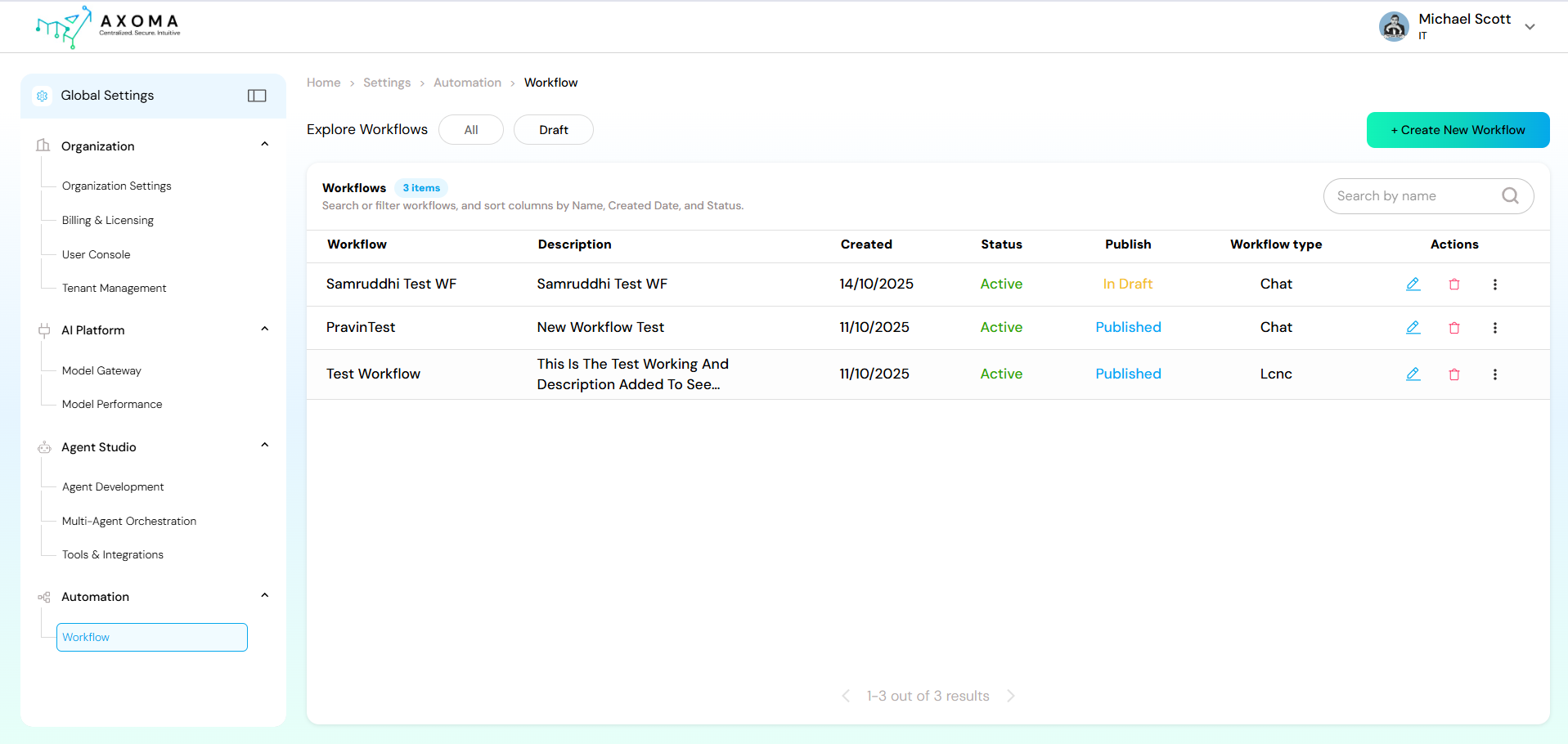
The Workflow Dashboard serves as the central hub for managing all existing workflows. Users can create, edit, publish, or monitor automation processes from one interface.
FeatureDescription
Workflow ListDisplays all available workflows with key details including Name, Description, Created Date, Status (Active/Inactive), Publish State (Draft/Published), and Workflow Type (Chat, LCNC, etc.).
Create New WorkflowOpens a new workflow design canvas for building automation from scratch.
Search & FilterAllows searching workflows by name or filtering by status, publish state, or creation date.
ActionsQuick access options such as Edit, Delete, View Runs, Schedule Flow, Open in Playground, and Publish/Unpublish.

Create a Workflow

Click Create New Workflow to enter the Workflow Playground a visual design environment where automation logic is built using pre-defined components.

1. Open the Playground

  • Click Create New Workflow or select an existing workflow to modify.
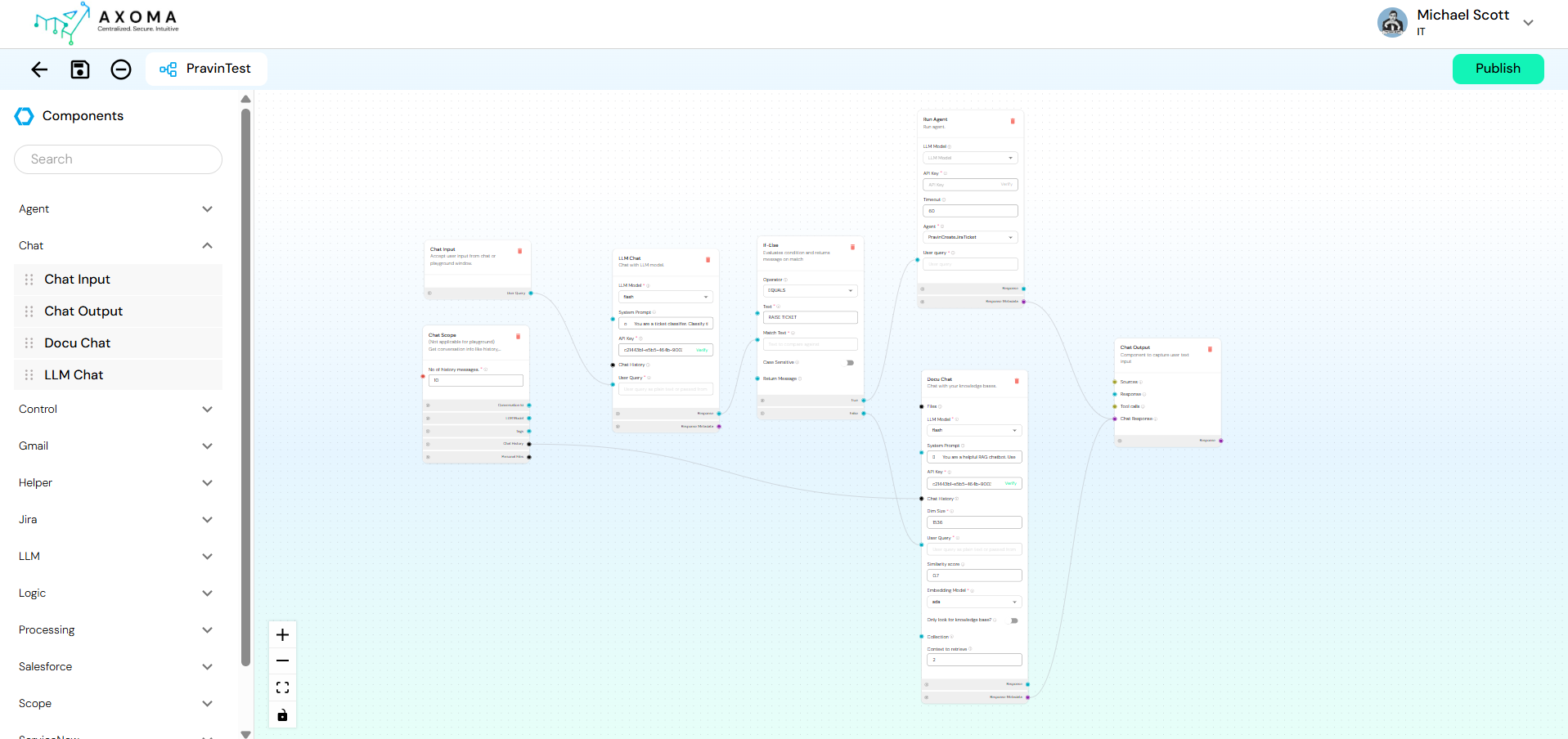
  • The visual canvas opens, displaying a Components Panel on the left and a Design Canvas in the center.

2. Drag Components

  • From the left-hand Components Panel, drag and drop desired components (e.g., Chat Input, If-Else, DocuChat, Run Agent, etc.) onto the canvas.

3. Connect Components

  • Use arrows to connect output fields of one component to input fields of another.
  • The flow defines the execution order and data mapping between steps.

4. Configure Each Component

  • Click on a component to open its configuration panel.
  • Fill required fields such as API Key, Model Selection, Query, or Condition Parameters.

5. Test & Publish

  • Use the Preview/Run feature to test your workflow.
  • Click Publish when ready to make it active.
Axoma

Workflow Components

Each component in the Components Panel plays a specific role. They are grouped into functional categories for easy navigation.

Component Categories Overview

CategoryDescription
AgentManages AI agent execution inside workflows.
ChatManages conversational flow between user input, LLM response, and chat output.
ControlAdds logical flow control like loops or sequence continuations.
GmailHandles Gmail-related operations for reading, replying, or sending emails.
HelperProvides small but essential utilities like generating IDs or fetching timestamps.
JiraAutomates Jira ticket management and issue tracking.
LLMHandles tasks related to language models, such as creating embeddings or model calls.
LogicImplements conditional flow using If-Else branches.
ProcessingData manipulation and transformation utilities.
SalesforceIntegrates Salesforce cases for CRM automation.
ScopeDefines data scope such as chat or app-level context.
ServiceNowAutomates incident management and ticket updates.
VariablesStores and reuses static or dynamic input values.

Component Details

ComponentDescriptionKey Configurations
Run AgentExecutes a predefined agent created in Agent Studio.Select Agent Name, LLM Model, provide API Key, and configure Timeout if needed.
ComponentPurposeDescription
Chat InputEntry pointCaptures user queries or inputs to initiate workflow execution.
Chat OutputExit pointDisplays or returns the final AI response to the user.
DocuChatKnowledge-based chatIntegrates document-based chat powered by a connected knowledge base. Includes settings for Similarity Score, Embedding Model, and Knowledge Base Selection.
LLM ChatModel interactionRoutes input through a selected LLM model. You can define System Prompt, User Query, API Key, and Model Type.
ComponentDescription
App ScopeDefines global data scope for app-level variables.
Chat ScopeManages conversational history and session-level variables.
ComponentPurpose
LoopExecutes a defined set of actions repeatedly based on a condition.
Next (Continue)Defines sequential flow to continue execution after a previous step.
ComponentDescription
Current DatetimeFetches current date and time dynamically.
ID GeneratorGenerates unique identifiers for records, messages, or transactions.
ComponentDescription
Create EmbeddingGenerates embeddings for text data to use in retrieval or semantic search workflows.
ComponentDescription
If-ElseAdds conditional branching logic. For example: If the LLM output = “Raise Ticket”, then route to Jira Create Issue; else continue chat.
ComponentDescription
Merge DataCombines data from multiple sources.
Combine TextMerges multiple text fields into one.
Data to DataFrameConverts structured data into a dataframe format for advanced manipulation.
RegEx ExtractorExtracts specific patterns using regular expressions.
ComponentPurpose
Draft GmailCreates a draft email within a connected Gmail account.
Gmail ExtractorExtracts email metadata such as sender, subject, or date.
Read GmailReads the contents of emails from the inbox based on filters.
Reply GmailSends a reply to a specific email thread.
Send GmailSends new emails to specified recipients.
ComponentDescription
Create Jira IssueCreates a new issue/ticket in Jira.
Jira Ticket ExtractorExtracts relevant details from Jira tickets.
Jira Read IssuesFetches issue data from Jira based on filters.
Jira Update IssuesUpdates existing Jira tickets (status, description, etc.).
ComponentDescription
Create CaseCreates a new case in Salesforce.
Get Multiple CasesRetrieves a list of cases.
Get Single CaseFetches details of a specific case.
ComponentDescription
App ScopeDefines global data scope for app-level variables.
Chat ScopeManages conversational history and session-level variables.
ComponentDescription
Static InputDefines fixed input variables (constants) for reuse across the workflow.

Workflow Execution Flow

A workflow executes step by step, following the defined connections:
  • Input: Captured via Chat Input or API trigger.
  • Processing: Handled by LLMs, Agents, or external integrations.
  • Logic Handling: Decisions made by If-Else or Loop components.
  • Output: Final message displayed via Chat Output or logged in connected systems.

Best Practices

  • Keep workflows modular reuse existing templates for common automations.
  • Validate each node before publishing.
  • Use naming conventions (e.g., “WF_SupportTicket”) for clarity.
  • Regularly review published workflows for optimization.