> ## Documentation Index
> Fetch the complete documentation index at: https://docs.axoma.ai/llms.txt
> Use this file to discover all available pages before exploring further.
# Schedules
The Schedules module in Axoma allows users to automate the execution of already-created workflows by defining time-based triggers. This helps in running workflows automatically at a specific time, at repeated intervals, or using advanced cron-based scheduling.
Home > Settings > Workflow > Schedules
Access Control: This module is accessible only to [Super Admin](http://localhost:3000/introduction/introduction#super-admin) users.
 ## Overview
Using the Schedules module, you can:
* Create schedules for existing workflows
* Control when and how often a workflow runs
* Manage execution behavior during delays or system downtime
* Activate, deactivate, edit, or delete schedules
* View execution history and logs of scheduled workflows
## Add new schedule
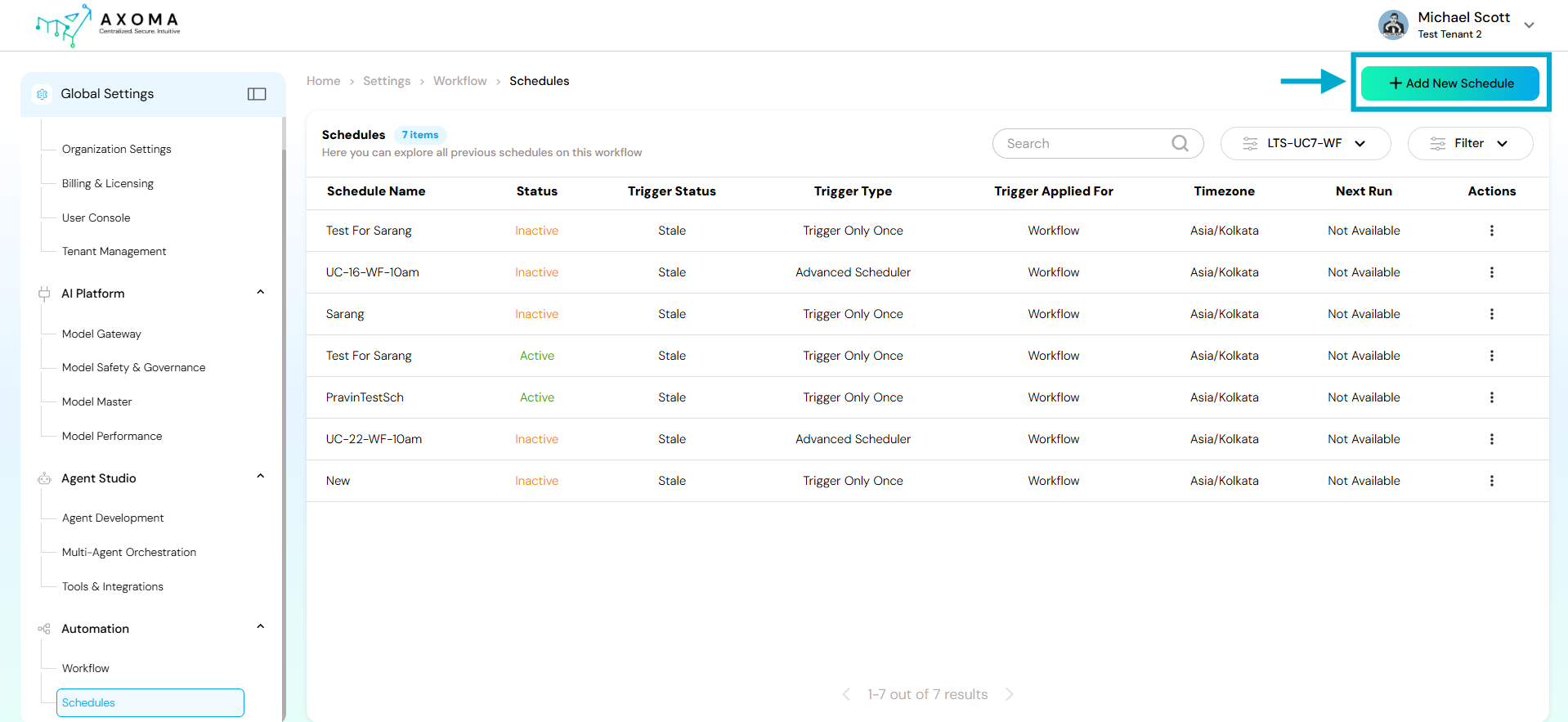
Click on + Add New Schedule to create a new scheduler for an existing workflow.
## Overview
Using the Schedules module, you can:
* Create schedules for existing workflows
* Control when and how often a workflow runs
* Manage execution behavior during delays or system downtime
* Activate, deactivate, edit, or delete schedules
* View execution history and logs of scheduled workflows
## Add new schedule
Click on + Add New Schedule to create a new scheduler for an existing workflow.
 * Schedule Name – Name given to the schedule
* Status – Indicates whether the schedule is Active or Inactive
* Trigger Status – Shows if the trigger is valid or stale
* Trigger Type – Type of scheduler used (Trigger Only Once, Repeated Intervals, Advanced Scheduler)
* Trigger Applied For – Indicates the trigger is applied to a Workflow
* Timezone – Timezone in which the schedule runs
* Next Run – Next scheduled execution time (if applicable)
* Actions – Options to Activate/Deactivate, Edit, Delete, or View Runs
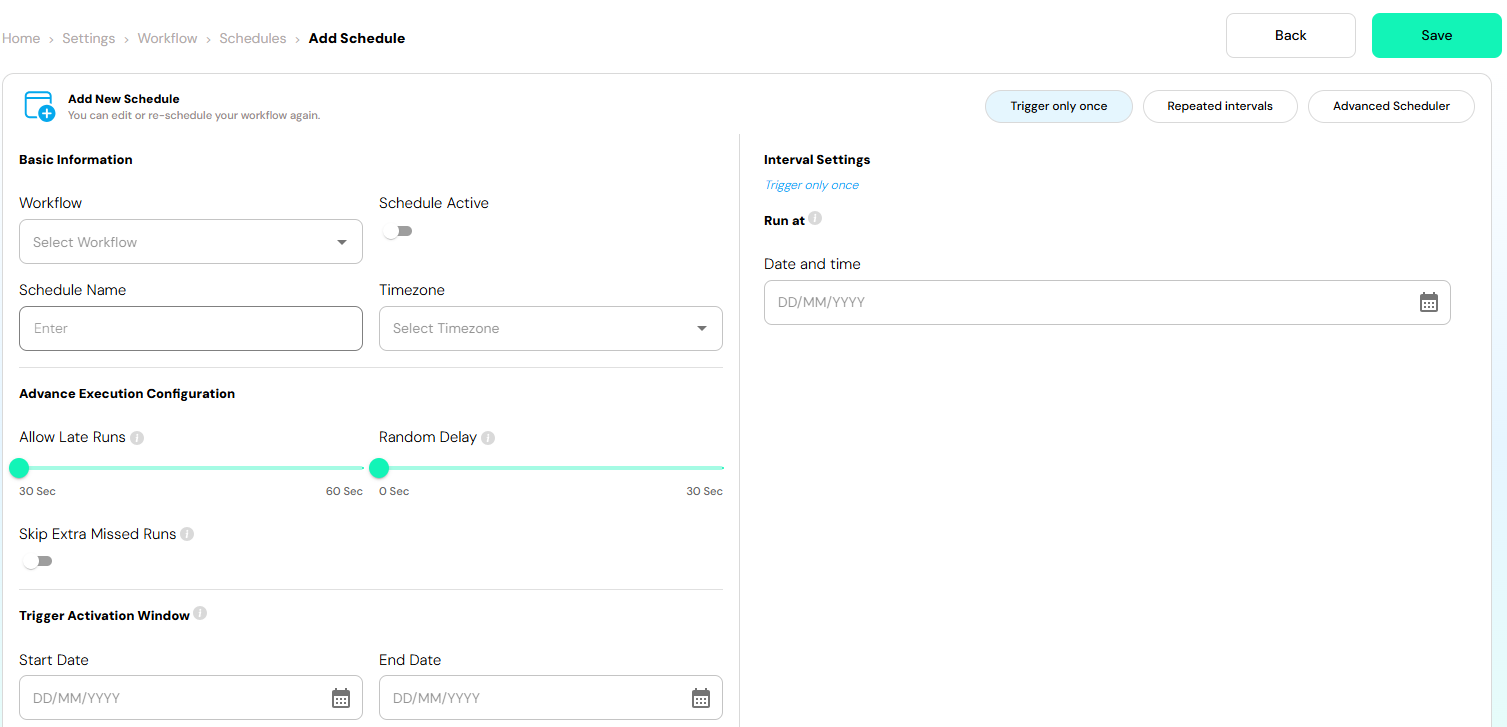
* Workflow - Select an already created workflow from the dropdown
* Schedule Active - Toggle ON to activate the schedule immediately after saving and Toggle OFF to keep the schedule inactive
* Schedule Name - Enter a unique and meaningful name for the schedule
* Timezone - Select the timezone in which the workflow should execute. All trigger times are evaluated based on this timezone
## Advance Execution Configuration
These settings control how the scheduler behaves under special conditions.
* Allow Late Runs - Defines the maximum delay allowed if the system was offline or busy
Example: If set to 60 seconds, the workflow can still run up to 60 seconds late
* Random Delay - Adds a random delay before execution. Helps avoid system load spikes when multiple schedules run simultaneously
Example: A random delay of up to 30 seconds will execute the workflow at a random time within that range
* Skip Extra Missed Runs - When enabled, skips multiple missed executions and runs only once. Useful when the system was down for a long period
## Trigger Activation Window
Defines the date range during which the scheduler remains active.
* Start Date - Date from which the scheduler becomes active
* End Date - Date after which the scheduler automatically stops triggering
Jobs will only trigger within this defined window.
## Schedule Types
Axoma provides three scheduling options:
### Trigger Only Once
* Runs the workflow only one time at the specified date and time
* Interval Settings: Select Date and Time for execution
Use Case Example:
* One-time data sync.
* Single report generation
### Repeated Intervals
Runs the workflow repeatedly at fixed intervals (for example, every few minutes or hours)
Use Case Example:
* Periodic data monitoring
* Frequent system health checks
### Advanced Scheduler (Cron Expression)
Provides full control over scheduling using Cron Expressions
Cron Expression Format
A cron expression consists of five fields:
*Minute Hour Day-of-Month Month Day-of-Week*
Common Examples
| **Cron Expression** | **Description** |
| ------------------- | ---------------------------------------------- |
| 0 10 \* \* \* | Runs every day at 10:00 AM |
| \*/15 \* \* \* \* | Runs every 15 minutes |
| 0 9 \* \* 1 | Runs every Monday at 9:00 AM |
| 0 0 1 \* \* | Runs on the 1st day of every month at midnight |
| 30 18 \* \* 1-5 | Runs at 6:30 PM, Monday to Friday |
Tip: Cron-based scheduling is recommended for complex or enterprise-level automation needs.
## Saving the Schedule
* Click Save after configuring all required fields
* If Schedule Active is enabled, the scheduler becomes active immediately
* The workflow will execute at the configured time or interval
## View Runs & Logs
* From the Schedules home screen, select View Runs for a schedule to:
* See how many times the workflow has executed
* View execution timestamps
* Check success or failure status
* Debug workflow behavior using execution logs
## Key Notes & Best Practices
* Always verify the selected timezone before saving
* Use random delay when scheduling multiple workflows at the same time
* Prefer cron expressions for advanced and recurring automation
* Use Trigger Activation Window to prevent unintended long-term execution
This module enables reliable, flexible, and scalable automation of workflows in Axoma through robust scheduling capabilities.
## Available Actions on homepage
Only published workflows are available for scheduling
* Activate / Inactivate a schedule
* Edit an existing schedule
* Delete a schedule
* View Runs – View workflow execution logs and run history
* Schedule Name – Name given to the schedule
* Status – Indicates whether the schedule is Active or Inactive
* Trigger Status – Shows if the trigger is valid or stale
* Trigger Type – Type of scheduler used (Trigger Only Once, Repeated Intervals, Advanced Scheduler)
* Trigger Applied For – Indicates the trigger is applied to a Workflow
* Timezone – Timezone in which the schedule runs
* Next Run – Next scheduled execution time (if applicable)
* Actions – Options to Activate/Deactivate, Edit, Delete, or View Runs
* Workflow - Select an already created workflow from the dropdown
* Schedule Active - Toggle ON to activate the schedule immediately after saving and Toggle OFF to keep the schedule inactive
* Schedule Name - Enter a unique and meaningful name for the schedule
* Timezone - Select the timezone in which the workflow should execute. All trigger times are evaluated based on this timezone
## Advance Execution Configuration
These settings control how the scheduler behaves under special conditions.
* Allow Late Runs - Defines the maximum delay allowed if the system was offline or busy
Example: If set to 60 seconds, the workflow can still run up to 60 seconds late
* Random Delay - Adds a random delay before execution. Helps avoid system load spikes when multiple schedules run simultaneously
Example: A random delay of up to 30 seconds will execute the workflow at a random time within that range
* Skip Extra Missed Runs - When enabled, skips multiple missed executions and runs only once. Useful when the system was down for a long period
## Trigger Activation Window
Defines the date range during which the scheduler remains active.
* Start Date - Date from which the scheduler becomes active
* End Date - Date after which the scheduler automatically stops triggering
Jobs will only trigger within this defined window.
## Schedule Types
Axoma provides three scheduling options:
### Trigger Only Once
* Runs the workflow only one time at the specified date and time
* Interval Settings: Select Date and Time for execution
Use Case Example:
* One-time data sync.
* Single report generation
### Repeated Intervals
Runs the workflow repeatedly at fixed intervals (for example, every few minutes or hours)
Use Case Example:
* Periodic data monitoring
* Frequent system health checks
### Advanced Scheduler (Cron Expression)
Provides full control over scheduling using Cron Expressions
Cron Expression Format
A cron expression consists of five fields:
*Minute Hour Day-of-Month Month Day-of-Week*
Common Examples
| **Cron Expression** | **Description** |
| ------------------- | ---------------------------------------------- |
| 0 10 \* \* \* | Runs every day at 10:00 AM |
| \*/15 \* \* \* \* | Runs every 15 minutes |
| 0 9 \* \* 1 | Runs every Monday at 9:00 AM |
| 0 0 1 \* \* | Runs on the 1st day of every month at midnight |
| 30 18 \* \* 1-5 | Runs at 6:30 PM, Monday to Friday |
Tip: Cron-based scheduling is recommended for complex or enterprise-level automation needs.
## Saving the Schedule
* Click Save after configuring all required fields
* If Schedule Active is enabled, the scheduler becomes active immediately
* The workflow will execute at the configured time or interval
## View Runs & Logs
* From the Schedules home screen, select View Runs for a schedule to:
* See how many times the workflow has executed
* View execution timestamps
* Check success or failure status
* Debug workflow behavior using execution logs
## Key Notes & Best Practices
* Always verify the selected timezone before saving
* Use random delay when scheduling multiple workflows at the same time
* Prefer cron expressions for advanced and recurring automation
* Use Trigger Activation Window to prevent unintended long-term execution
This module enables reliable, flexible, and scalable automation of workflows in Axoma through robust scheduling capabilities.
## Available Actions on homepage
Only published workflows are available for scheduling
* Activate / Inactivate a schedule
* Edit an existing schedule
* Delete a schedule
* View Runs – View workflow execution logs and run history