> ## Documentation Index
> Fetch the complete documentation index at: https://docs.axoma.ai/llms.txt
> Use this file to discover all available pages before exploring further.
# About Global Settings
Global Settings serve as the centralized control hub in Axoma, allowing Super Admins to manage platform-wide configurations, governance, and policies.
This area ensures that only authorized personnel can make administrative or structural changes across the organization.
It provides a secure, scalable foundation for managing:
* Users and tenants
* AI models and performance tracking
* Agent workflows and automation processes
Dashboard → Top Navigation Bar → Global Settings (⚙️ icon)
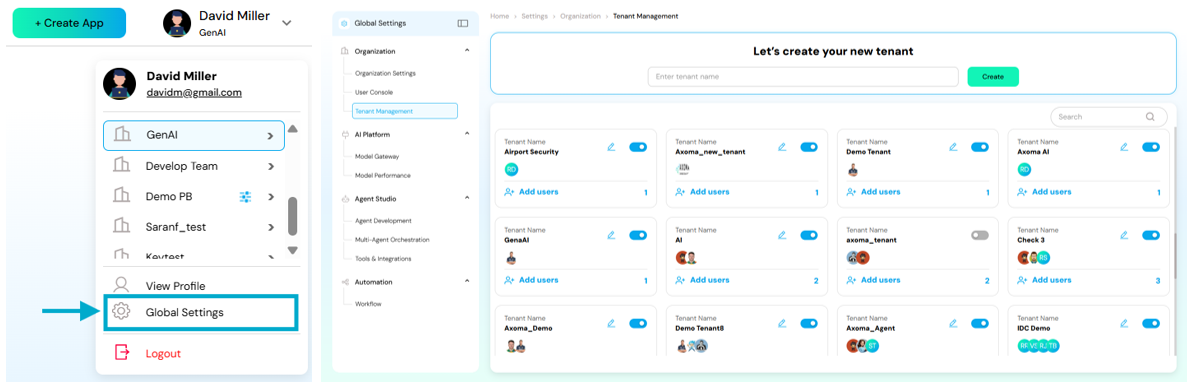 #### Purpose of Global Settings
The Global Settings section enables organizations to:
* Maintain governance and consistency across all applications
* Securely manage users, roles, and permissions
* Integrate AI models and tools effectively
* Streamline workflows through centralized automation control
By consolidating all critical configurations in one place, IT teams can ensure compliance, security, and efficient administration across the platform.
## The available sections include:
### Ogranization
Manage all organization-level configurations from this section.
This includes:
* [Organization Settings](http://localhost:3000/global%20settings/organization) – Update core details such as organization name, logo, and contact information.
* [User Console](http://localhost:3000/global%20settings/user%20management) – Manage all users under your organization, including their access levels and roles.
* [Tenant Management](http://localhost:3000/global%20settings/tenant%20management) – Create, edit, or deactivate tenants for different environments or clients.
### AI Platform
This section focuses on managing and monitoring your AI ecosystem.
Here, you can:
* Model Gateway – Configure or connect Language Models (LLMs) and Embedding Models.
* Model Performance – Evaluate model efficiency, track usage analytics, and optimize configurations.
### Agent Studio
The Agent Studio section is where you design, test, and orchestrate intelligent agents.
Sub-sections include:
* Agent Development – Build and test AI agents for specific workflows or tasks.
* Multi-Agent Orchestration – Coordinate multiple agents in chain or hierarchical workflows.
* Tools & Integrations – Connect external services like Salesforce, Jira, or ServiceNow to enhance functionality.
### Automation
The Automation section empowers you to streamline repetitive or multi-step operations through automated workflows.
* Workflow Management – Create, schedule, and monitor automation pipelines. Simplify manual processes and ensure consistent, efficient execution across systems.
* Schedules - Allow users to automate the execution of already-created workflows by defining time-based triggers. This helps in running workflows automatically at a specific time, at repeated intervals, or using advanced cron-based scheduling.
***
Control user roles, permissions, and access across the platform
Control user roles, permissions, and access across the platform
Manage and switch between multiple organizational tenants
Manage large language models available for use within the platform
Configure and deploy intelligent agents for specific workflows
Control user roles, permissions, and access across the platform
Control user roles, permissions, and access across the platform
Manage and switch between multiple organizational tenants
Control user roles, permissions, and access across the platform
For reliable, flexible, and scalable automation of workflows in Axoma through robust scheduling capabilities.
#### Purpose of Global Settings
The Global Settings section enables organizations to:
* Maintain governance and consistency across all applications
* Securely manage users, roles, and permissions
* Integrate AI models and tools effectively
* Streamline workflows through centralized automation control
By consolidating all critical configurations in one place, IT teams can ensure compliance, security, and efficient administration across the platform.
## The available sections include:
### Ogranization
Manage all organization-level configurations from this section.
This includes:
* [Organization Settings](http://localhost:3000/global%20settings/organization) – Update core details such as organization name, logo, and contact information.
* [User Console](http://localhost:3000/global%20settings/user%20management) – Manage all users under your organization, including their access levels and roles.
* [Tenant Management](http://localhost:3000/global%20settings/tenant%20management) – Create, edit, or deactivate tenants for different environments or clients.
### AI Platform
This section focuses on managing and monitoring your AI ecosystem.
Here, you can:
* Model Gateway – Configure or connect Language Models (LLMs) and Embedding Models.
* Model Performance – Evaluate model efficiency, track usage analytics, and optimize configurations.
### Agent Studio
The Agent Studio section is where you design, test, and orchestrate intelligent agents.
Sub-sections include:
* Agent Development – Build and test AI agents for specific workflows or tasks.
* Multi-Agent Orchestration – Coordinate multiple agents in chain or hierarchical workflows.
* Tools & Integrations – Connect external services like Salesforce, Jira, or ServiceNow to enhance functionality.
### Automation
The Automation section empowers you to streamline repetitive or multi-step operations through automated workflows.
* Workflow Management – Create, schedule, and monitor automation pipelines. Simplify manual processes and ensure consistent, efficient execution across systems.
* Schedules - Allow users to automate the execution of already-created workflows by defining time-based triggers. This helps in running workflows automatically at a specific time, at repeated intervals, or using advanced cron-based scheduling.
***
Control user roles, permissions, and access across the platform
Control user roles, permissions, and access across the platform
Manage and switch between multiple organizational tenants
Manage large language models available for use within the platform
Configure and deploy intelligent agents for specific workflows
Control user roles, permissions, and access across the platform
Control user roles, permissions, and access across the platform
Manage and switch between multiple organizational tenants
Control user roles, permissions, and access across the platform
For reliable, flexible, and scalable automation of workflows in Axoma through robust scheduling capabilities.