
Overview
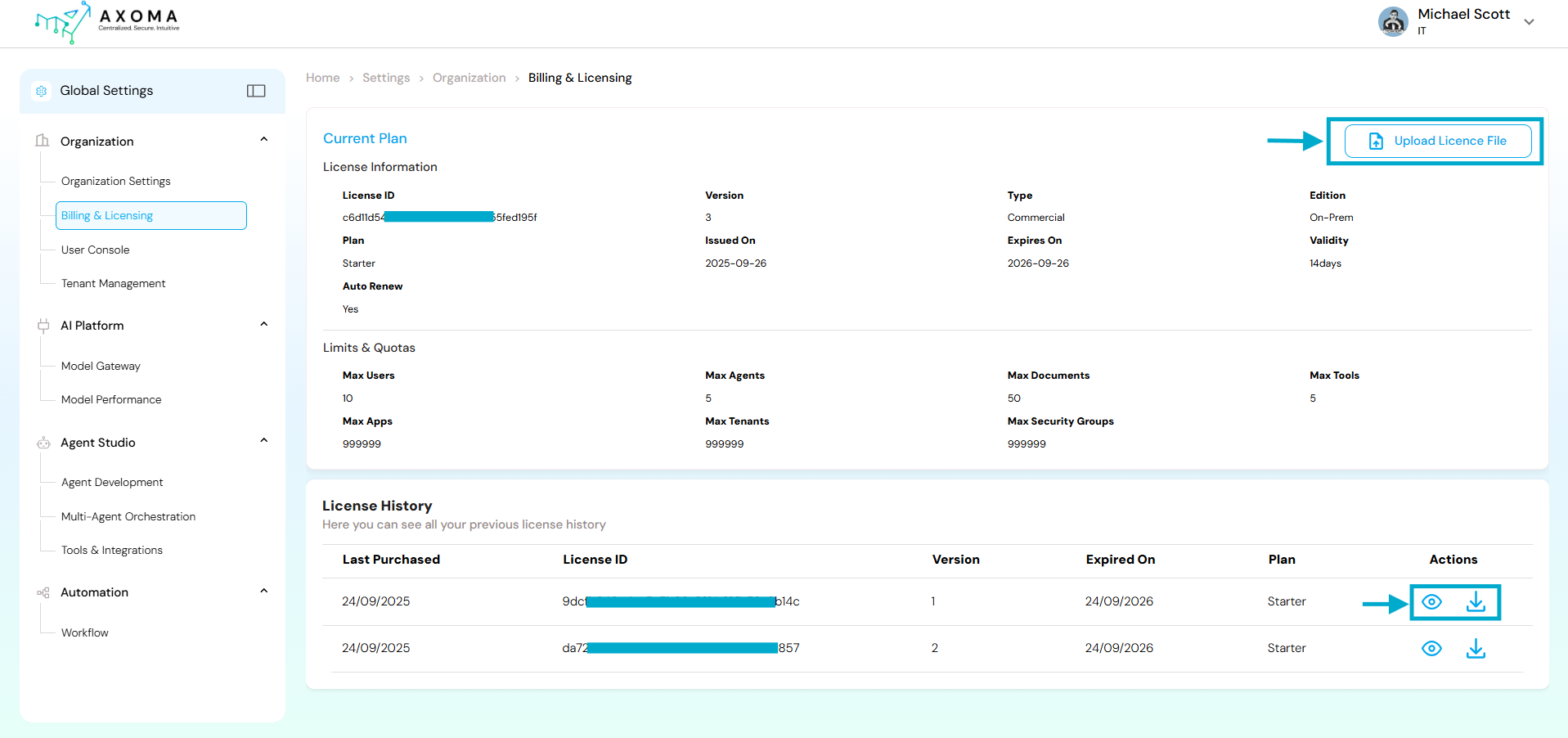
The Billing & Licensing module under Global Settings provides a centralized interface for managing your organization’s subscription, license information, and resource quotas within Axoma.
This section enables Super Admins or authorized personnel to:
- View and manage the current plan details.
- Track license validity and renewal status.
- Monitor system limits like maximum users, agents, documents, and more.
- Upload new or updated license files.
- Access complete license history for audit and compliance purposes.
Global Settings → Organization → Billing & Licensing
Sections
This section summarizes the active license applied to the organization.
| Field Name | Description | Purpose | |
| License ID | A unique, system-generated identifier for the active license (masked for security: c6d****d195f). | Used internally to validate the organization’s active license and link it with the backend license management system. | |
| Version | Indicates the release version of the license (e.g., 3). | Useful during license renewals or migrations, ensuring compatibility with the current Axoma version. | |
| Type | pecifies the type of license e.g., Commercial, Enterprise, or Trial. | Determines the organization’s entitlement to premium or enterprise features. | |
| Edition | Describes the deployment type such as On-Prem, Cloud, or Hybrid. | Helps align licensing with infrastructure preferences. | |
| Plan | Defines the subscription level (e.g., Starter, Professional, Enterprise). | Determines access levels, quota limits, and feature availability. | |
| Auto renew | Indicates whether the license will automatically renew upon expiry. | Ensures service continuity and prevents accidental downtime. | |
| Issued On / Expires On | The activation and expiration dates of the current license. | Displays the validity window for administrators to plan timely renewals. | |
| Validity | Duration of the license validity (e.g., 14 days remaining). | Quick reference for renewal alerts and upcoming expiration reminders. | |
Limits & Quotas
This section defines resource usage limits enforced by the current license plan.
Each plan (Starter, Professional, Enterprise) comes with specific capacity thresholds to manage fair usage.
| Field Name | Description | Purpose | |
| Max Users | The maximum number of users allowed under the current plan (e.g., 10). | Controls how many users can be onboarded under the same organization. | |
| Max Agents | Maximum number of agents that can be created in Agent Studio (e.g., 5). | Helps maintain scalability within licensed boundaries. | |
| Max Tools | Defines the total number of third-party or internal tools that can be integrated (e.g., 5). | Encourages efficient integration management under specific plans. | |
| Max Documents | The total number of documents that can be uploaded or processed (e.g., 50). | Prevents storage or data overuse beyond licensed capacity. | |
| Max Apps | The total number of applications that can be deployed or connected (e.g., 999). | Used for monitoring integration scalability. | |
| Max Tenants | Maximum tenant accounts that can be managed under the same organization (e.g., 999). | Relevant for multi-tenant architectures and enterprise setups. | |
| Max Security Groups | The maximum number of security groups that can be created for role-based access control. | Ensures structured, compliant permission management. | |
Upload License File
This button allows the Super Admin to upload a new or updated license file (typically provided by Axoma Support or Sales Team).
Uploading a license file updates the system to reflect the new plan, version, or extended validity period.
License History
| Field Name | Description | Purpose |
| Last Purchased | The date when the license was purchased or renewed. | Date tracking |
| License ID | Unique ID of each license record (masked: 9dc****8b14c). | Used internally for reference and audit logs. |
| Version | The version number of the respective license. | Helps identify incremental updates (v1, v2, etc.). |
| Expired On | The expiration date of each license. | Indicates validity period and helps track renewal cycles. |
| Plan | Specifies the plan type (e.g., Starter). | Reflects the feature set applicable during that license period. |
| Actions | Includes icons for View (👁️) and Download (⬇️). | Allows the admin to review or store a local copy of past licenses. |
Best Practices
- Always keep the latest license file backed up securely.
- Verify the Auto Renew status periodically to prevent unexpected service interruptions.
- Use the License History for audit trails or contract renewals.
- Only Super Admins should upload or modify license files to maintain license integrity.