

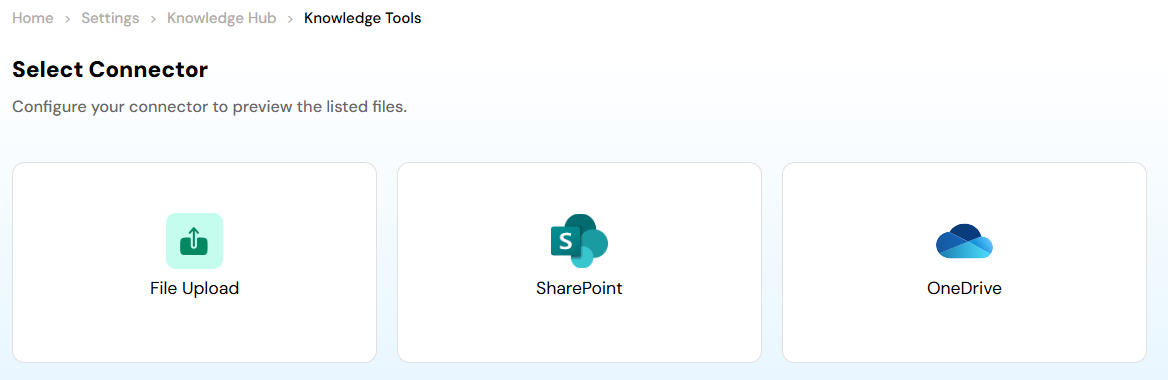
Available Connectors
File Upload
Upload local files directly from your system. Ideal for quick onboarding of documents such as PDFs, Word files, presentations, or text files.SharePoint
Connect your SharePoint workspace to securely by clicking on + Create your first connection and sync organizational documents. This enables your knowledge base to stay aligned with enterprise content.OneDrive
Connect your OneDrive account by clicking on + Create your first connection to fetch and manage files stored in the cloud, ensuring easy access to frequently updated resources. How it works- Select a connector.
- Authenticate (if required).
- Preview and choose the files you want to include.
- Index the selected content to make it searchable by AI agents.
File Upload
The File Upload section under the Knowledge Base module allows Admins to seamlessly upload and manage multiple documents that can be leveraged within Axoma’s intelligent chat interface for contextual question answering and information retrieval.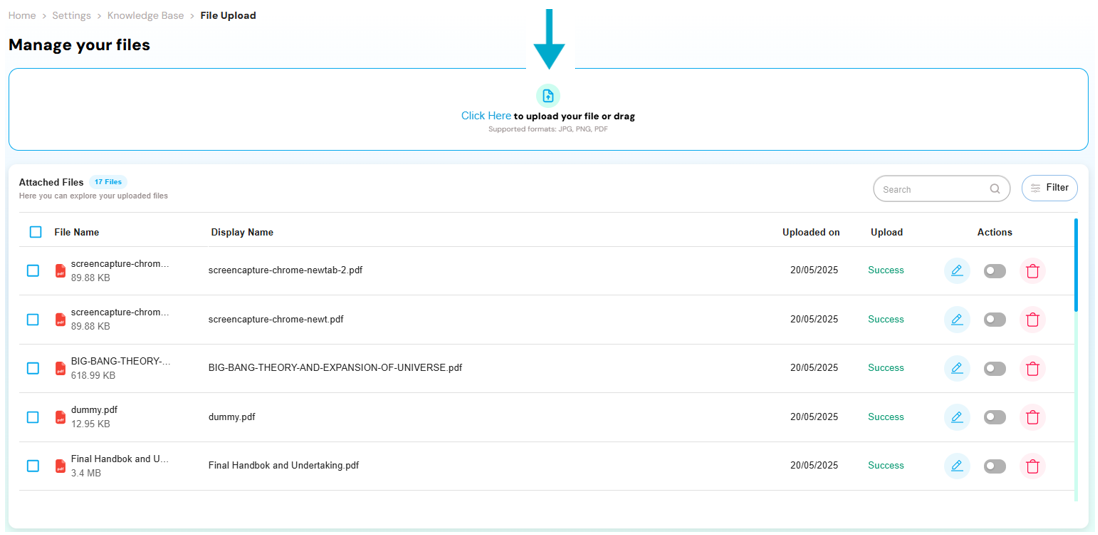
Bulk Upload Support
Users can upload multiple files simultaneously, making it efficient to populate the knowledge base with relevant enterprise documents such as PDFs, DOCX files, and more.Access Rights Assignment
During upload, users can assign predefined Access Rights to each file. This ensures that only the authorized Groups or roles within the organization can access or query specific documents.Tag Association
Tags created under the Tags section can be assigned to each file to facilitate organized classification, sorting, and retrieval of documents based on business context, departments, or use cases.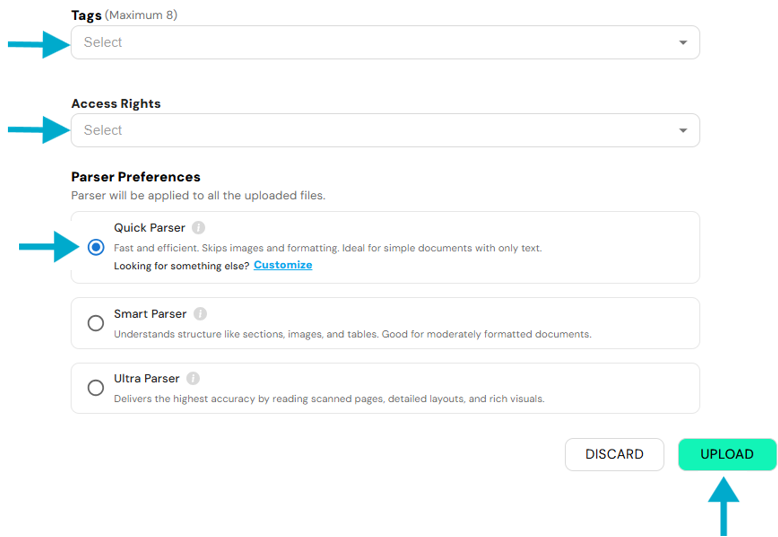
Parser Preferences
When uploading documents to the Knowledge Base, Parser Preferences allow you to choose how the file content is processed for optimal retrieval and accuracy. Three parser modes are available: Quick - Ideal for clean, text-only documents. It skips image and table processing to ensure fast parsing using basic text chunking (chunk_size: 1024, overlap: 200 by default). By clicking on the “Customize” button within this parser setting, admins or superadmins can modify the chunk size and overlap values to better suit specific document structures or use cases. Smart - Recommended for standard documents containing light imagery or tables. It performs OCR and detects basic structures like headings and images for balanced performance and accuracy. Ultra - Designed for complex, image-heavy files. It applies advanced OCR, image scaling, and deep structure recognition to maximize extraction precision. Choose the parser mode that best suits your document type to improve knowledge base performance.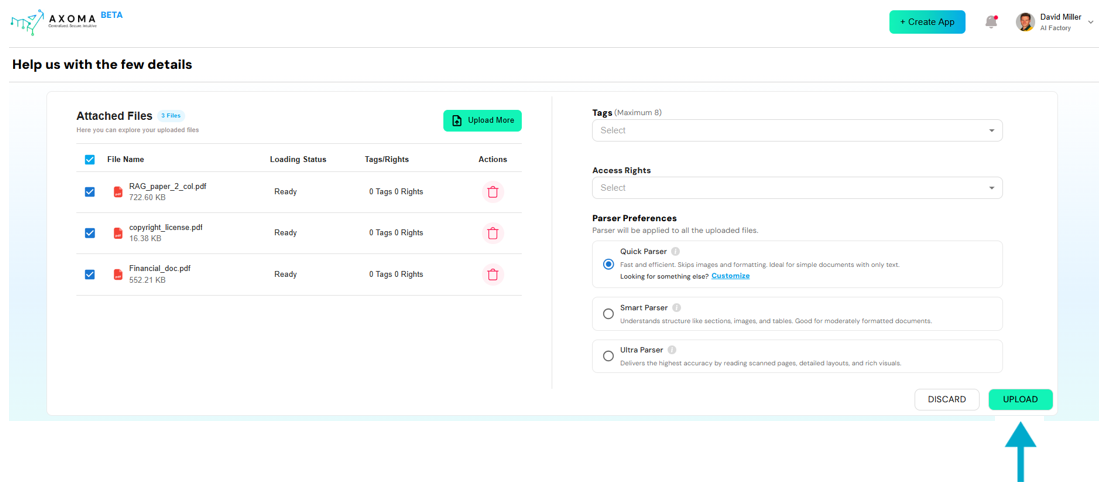 Users can select the appropriate parser based on the nature and complexity of the document being uploaded.